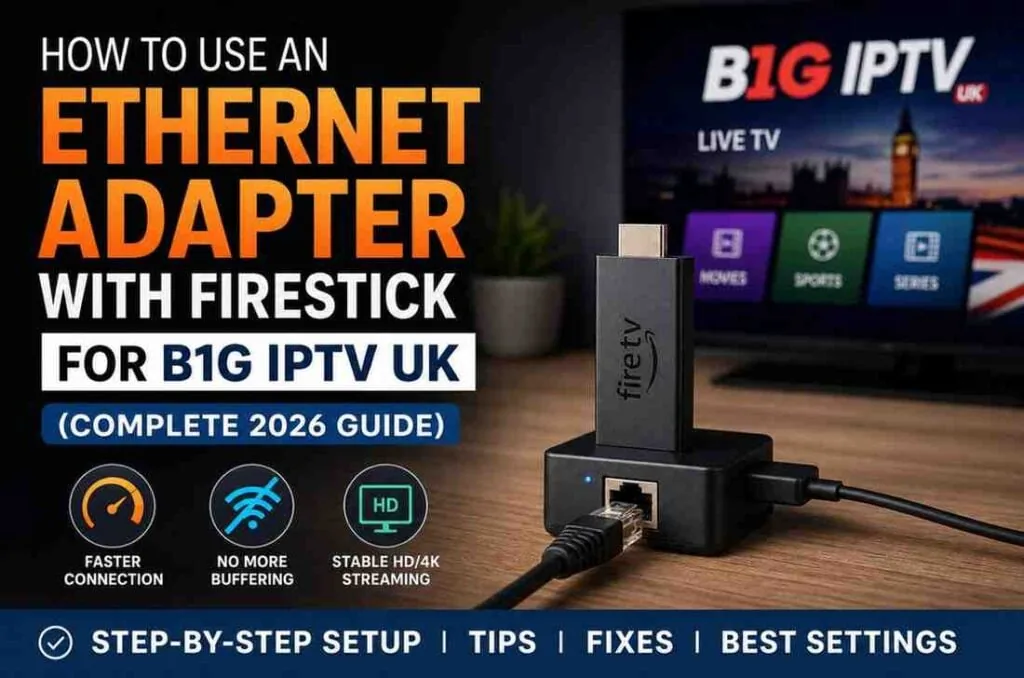
How to Use Ethernet Adapter with Firestick for B1G IPTV UK.
Streaming IPTV on a Firestick is meant to be simple—plug it in, connect to WiFi, and start watching. But if you’re using B1G IPTV UK and dealing with buffering, freezing, or inconsistent quality, WiFi might be the weak link in your setup. This is where a Firestick Ethernet Adapter IPTV setup can make a real difference, giving you a more stable and reliable connection.
That’s where using an Ethernet adapter comes in. A wired connection can transform your streaming experience from frustrating to smooth and reliable. By switching to a Firestick Ethernet Adapter IPTV solution, you eliminate common WiFi issues like interference and signal drops, resulting in better streaming performance.
In this complete guide, you’ll learn exactly how to use an Ethernet adapter with your Firestick, why it improves B1G IPTV UK performance, and how to get the best results using a Firestick Ethernet Adapter IPTV setup.
Why Use Ethernet Instead of WiFi for IPTV?
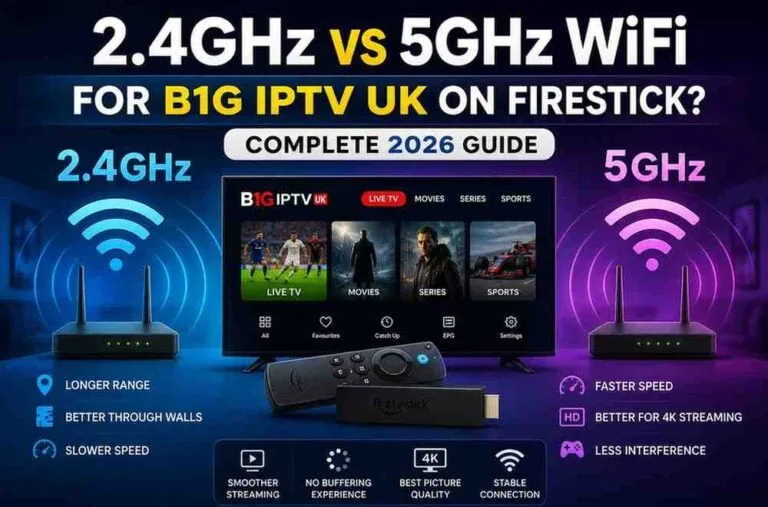
WiFi is convenient, but it’s not always stable—especially for IPTV streaming.
Here’s what usually goes wrong with WiFi:
- Signal interference from walls or other devices
- Network congestion (multiple devices connected)
- Inconsistent speeds
- Sudden drops or buffering
B1G IPTV UK streams live content, which requires steady data flow. Even a small interruption can cause buffering or quality drops.
Ethernet fixes this by:
- Providing a direct connection to your router
- Delivering consistent speeds
- Reducing latency (delay)
- Eliminating interference
In simple terms: wired = stable, WiFi = variable
What You Need to Connect Ethernet to Firestick
Firestick doesn’t have a built-in Ethernet port, so you’ll need a small adapter.
Essential Items
- Firestick (any model)
- Ethernet adapter for Firestick
- Ethernet cable (Cat5e or Cat6 recommended)
- Router with available LAN port
Optional (But Recommended)
- Power adapter (original Firestick adapter works best)
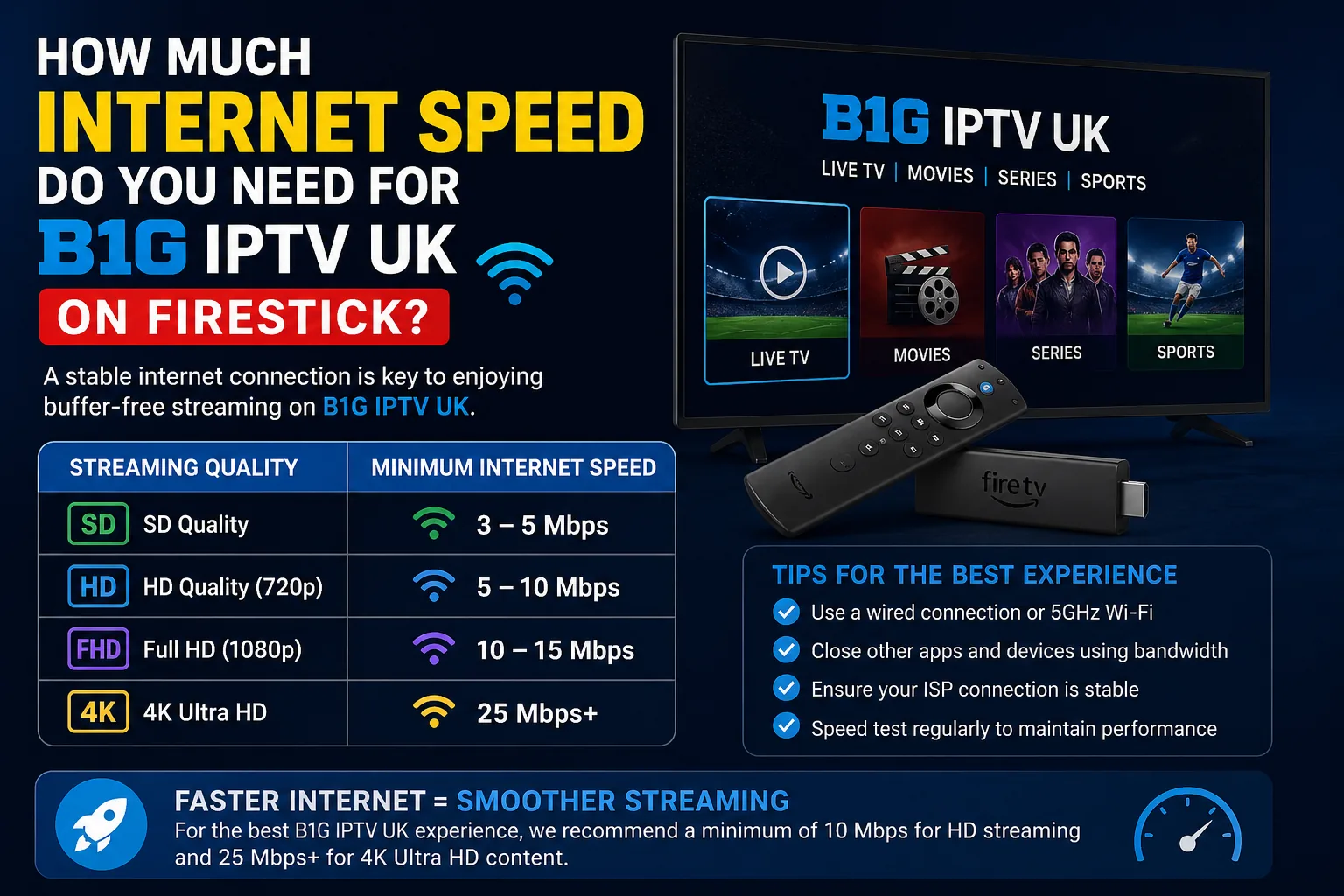
- High-speed internet (at least 20 Mbps for IPTV)
Types of Ethernet Adapters for Firestick
Not all adapters are equal, and choosing the right one matters.
1. Official Amazon Ethernet Adapter
- Plug-and-play
- Reliable performance
- Limited to 100 Mbps
2. Third-Party OTG Ethernet Adapters
- Can support higher speeds (up to 300 Mbps+)
- May include USB ports
- Slightly more complex setup
If your internet speed is above 100 Mbps, a third-party adapter may give better performance.
Step-by-Step: How to Connect Ethernet to Firestick
Let’s walk through the process step by step.
Step 1: Unplug Your Firestick
Before connecting anything, turn off and unplug your Firestick.
Step 2: Connect the Ethernet Adapter
Plug the Ethernet adapter into your Firestick’s power port.
Step 3: Connect the Ethernet Cable
Insert one end of the Ethernet cable into the adapter and the other into your router.
Step 4: Plug in Power
Connect the power cable to the adapter (not directly to the Firestick).
Step 5: Turn On Your Firestick
Once powered on, the Firestick should automatically detect the wired connection.
Step 6: Disable WiFi (Optional but Recommended)
To avoid conflicts:
- Go to Settings
- Network
- Disconnect WiFi
Now your Firestick will rely entirely on Ethernet.
How to Confirm Ethernet is Working
After setup, you should verify the connection.
Check Network Status
- Go to Settings → Network
- Look for “Wired Connection”
Run a Speed Test
Use apps like:
- Internet Speed Test
- Analiti Speed Test
You should notice:
- More stable speeds
- Lower latency
- No sudden drops
How Ethernet Improves B1G IPTV UK Performance
Switching to Ethernet can dramatically improve your streaming experience.
1. Eliminates Buffering
WiFi fluctuations cause buffering. Ethernet provides steady data flow.
2. Better Picture Quality
With stable bandwidth, IPTV streams stay in HD or 4K without dropping.
3. Faster Channel Switching
No delays when changing channels.
4. Reduced App Crashes
Consistent connection helps apps run smoothly.
Best Settings for IPTV After Switching to Ethernet
Once you’re connected via Ethernet, optimize your Firestick further.
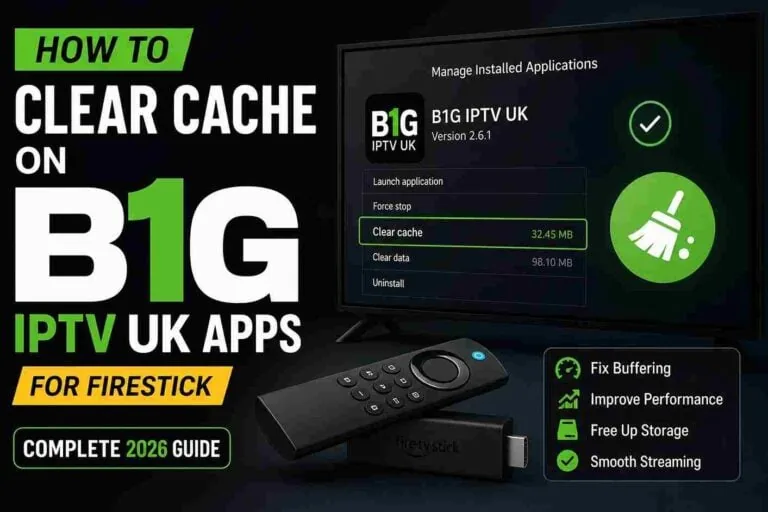
1. Clear Cache Regularly
- Go to Settings → Applications
- Clear cache for IPTV apps
2. Close Background Apps
Too many apps slow performance.
3. Keep Firestick Updated
System updates improve stability.
4. Use Lightweight IPTV Apps
Heavy apps can still lag even with Ethernet.
Common Problems and Fixes
Even with Ethernet, you might face minor issues.
Problem 1: No Internet Detected
Fix:
- Check cable connection
- Restart router
- Reboot Firestick
Problem 2: Slow Speed on Ethernet
Fix:
- Use a better Ethernet cable (Cat6)
- Try a different router port
- Upgrade adapter
Problem 3: Adapter Not Working
Fix:
- Ensure power is connected properly
- Try another adapter
- Restart everything
Ethernet vs WiFi: Real Difference for IPTV
| Feature | WiFi | Ethernet |
| Stability | Medium | High |
| Speed Consistency | Low | High |
| Interference | Yes | No |
| IPTV Performance | Variable | Excellent |
If you’re serious about smooth B1G IPTV UK streaming, Ethernet is clearly the better option.
Does Ethernet Completely Stop Buffering?
Not always—but it significantly reduces it.
Buffering can still happen due to:
- Slow internet plan
- IPTV server issues
- Overloaded Firestick
But Ethernet removes one of the biggest causes: unstable connection.
When Ethernet Makes the Biggest Difference
You’ll notice the biggest improvement if:
- Your WiFi signal is weak
- You live in a large house
- Multiple devices use the network
- You stream HD or 4K content
Tips to Maximize Ethernet Performance
Want the absolute best results? Do this:
- Place router closer to Firestick
- Use high-quality Ethernet cables
- Restart router weekly
- Avoid cheap adapters
- Limit background downloads
Is Ethernet Worth It for B1G IPTV UK?
Short answer: Yes—absolutely.
If you:
- Hate buffering
- Watch live sports
- Stream in HD or 4K
- Want consistent quality
Then switching to Ethernet is one of the easiest and most effective upgrades you can make.
Final Thoughts
Using an Ethernet adapter with your Firestick isn’t complicated, but the impact is huge. It removes the unpredictability of WiFi and gives your B1G IPTV UK setup a stable, reliable connection.
You don’t need expensive equipment or technical skills—just the right adapter, a cable, and a few minutes to set it up.
If you’ve been struggling with buffering or poor streaming quality, this small change might be exactly what you need.