How to Clear B1G IPTV UK Cache on Firestick (2026)

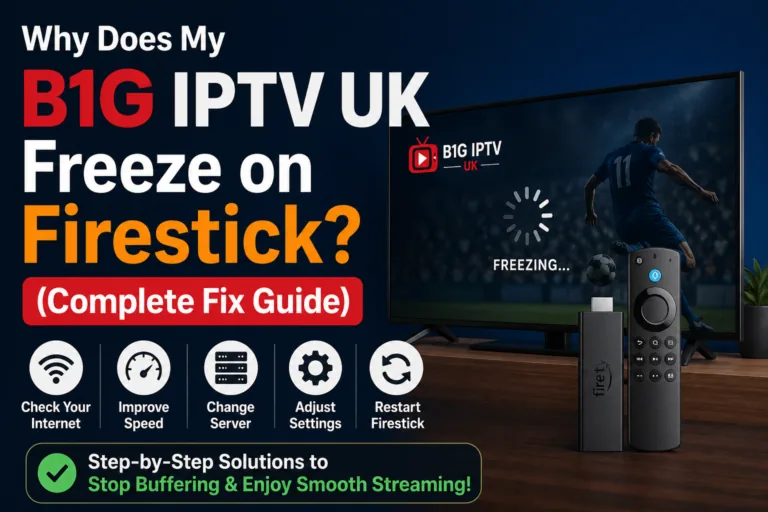
Streaming should feel effortless. You click play, sit back, and enjoy your favorite channels without interruptions. But if you’re using B1G IPTV UK on your Firestick and things have started slowing down—buffering, freezing, or even crashing—you’re definitely not alone.
One of the most common reasons behind these issues is something most people overlook: B1G IPTV cache Firestick problems caused by cache buildup. Over time, the B1G IPTV cache Firestick data grows too large or becomes corrupted, which directly affects performance. When this happens, clearing the B1G IPTV cache Firestick becomes essential to restore smooth streaming.
The good news? Fixing it takes just a few minutes, and you don’t need to be tech-savvy at all.
In this complete guide, you’ll learn exactly how to clear cache on B1G IPTV UK apps for Firestick, why it matters, and how to keep your streaming smooth going forward.
What Is Cache and Why Does It Matter?
Before jumping into the steps, let’s quickly break it down in simple terms.
Cache is temporary data stored by apps to help them load faster. When you open your IPTV app, it doesn’t start from scratch every time—it uses stored data (cache) to speed things up.
Sounds useful, right?
It is… until it isn’t.
Over time, this cache builds up and can become:
- Outdated
- Corrupted
- Too large for your Firestick to handle efficiently
When that happens, instead of helping performance, it starts hurting it.
Signs You Need to Clear Cache on B1G IPTV UK
Not sure if cache is your problem? Here are some clear warning signs:
1. Constant Buffering
Your stream pauses every few seconds, even with good internet.
2. App Crashing or Freezing
The app suddenly closes or gets stuck on a loading screen.
3. Slow Navigation
Menus take longer to load, and scrolling feels laggy.
4. Channels Not Loading Properly
You click a channel, and it either doesn’t start or shows an error.
5. Audio/Video Out of Sync
The sound doesn’t match what’s happening on screen.
If you’re experiencing even one of these issues, clearing cache is the first thing you should try.
How to Clear Cache on B1G IPTV UK Firestick (Step-by-Step)
Follow these simple steps carefully:
1: Go to Firestick Settings
- From your Firestick home screen
- Navigate to Settings (gear icon on the right)
2: Open Applications
- Scroll and select Applications
3: Manage Installed Applications
- Click on Manage Installed Applications
4: Find Your IPTV App
- Scroll through the list
- Select your B1G IPTV UK app (or IPTV player like TiviMate, IPTV Smarters, etc.)
5: Clear Cache
- Click Clear Cache
- Wait a few seconds
That’s it. You’ve successfully cleared the cache.
Important Tip: Don’t Click “Clear Data” (Unless Needed)
You’ll see two options:
- Clear Cache
- Clear Data
Here’s the difference:
| Option | What It Does |
| Clear Cache | Removes temporary files (safe) |
| Clear Data | Resets the app completely |
If you click Clear Data, you’ll lose:
- Login details
- Playlist settings
- Preferences
Only use it if the app is completely broken and cache clearing didn’t help.
How Often Should You Clear Cache?
There’s no fixed rule, but a good routine is:
- Light users: Once every 2–3 weeks
- Regular users: Once a week
- Heavy streamers: Every 3–5 days
If you stream daily, cache builds up faster than you think.
Why Clearing Cache Improves IPTV Performance
You might wonder—how does such a small step make a big difference?
Here’s what happens when you clear cache:
1. Frees Up Storage
Firestick devices have limited space. Clearing cache creates room for smoother operation.
2. Removes Corrupted Files
Broken cache files can cause crashes and buffering.
3. Refreshes App Performance
The app loads fresh data instead of relying on outdated files.
4. Reduces Lag
Less stored junk = faster navigation.
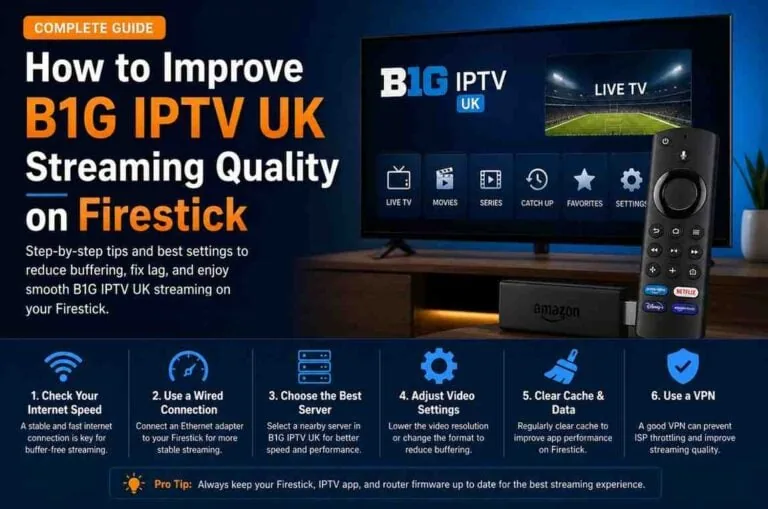
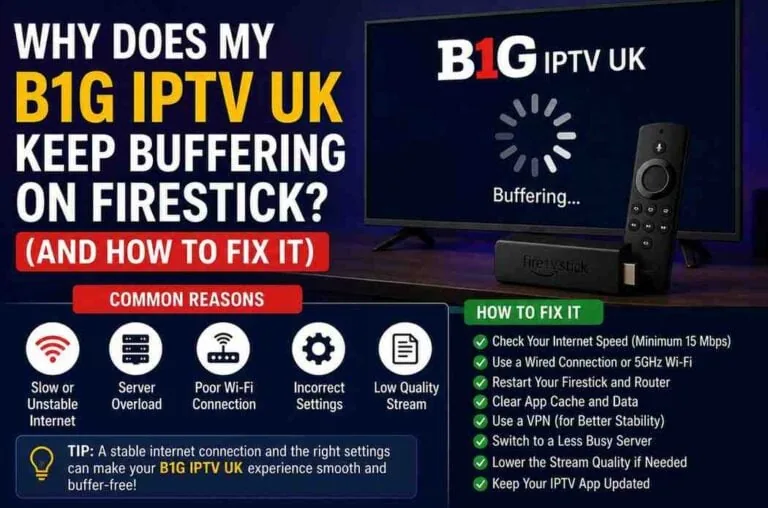
Other Ways to Fix B1G IPTV Buffering on Firestick
Clearing cache is powerful—but it’s not the only fix. If you still face issues, try these:
1. Restart Your Firestick
Sometimes the simplest fix works best.
- Unplug your Firestick
- Wait 30 seconds
- Plug it back in
This clears temporary memory (RAM).
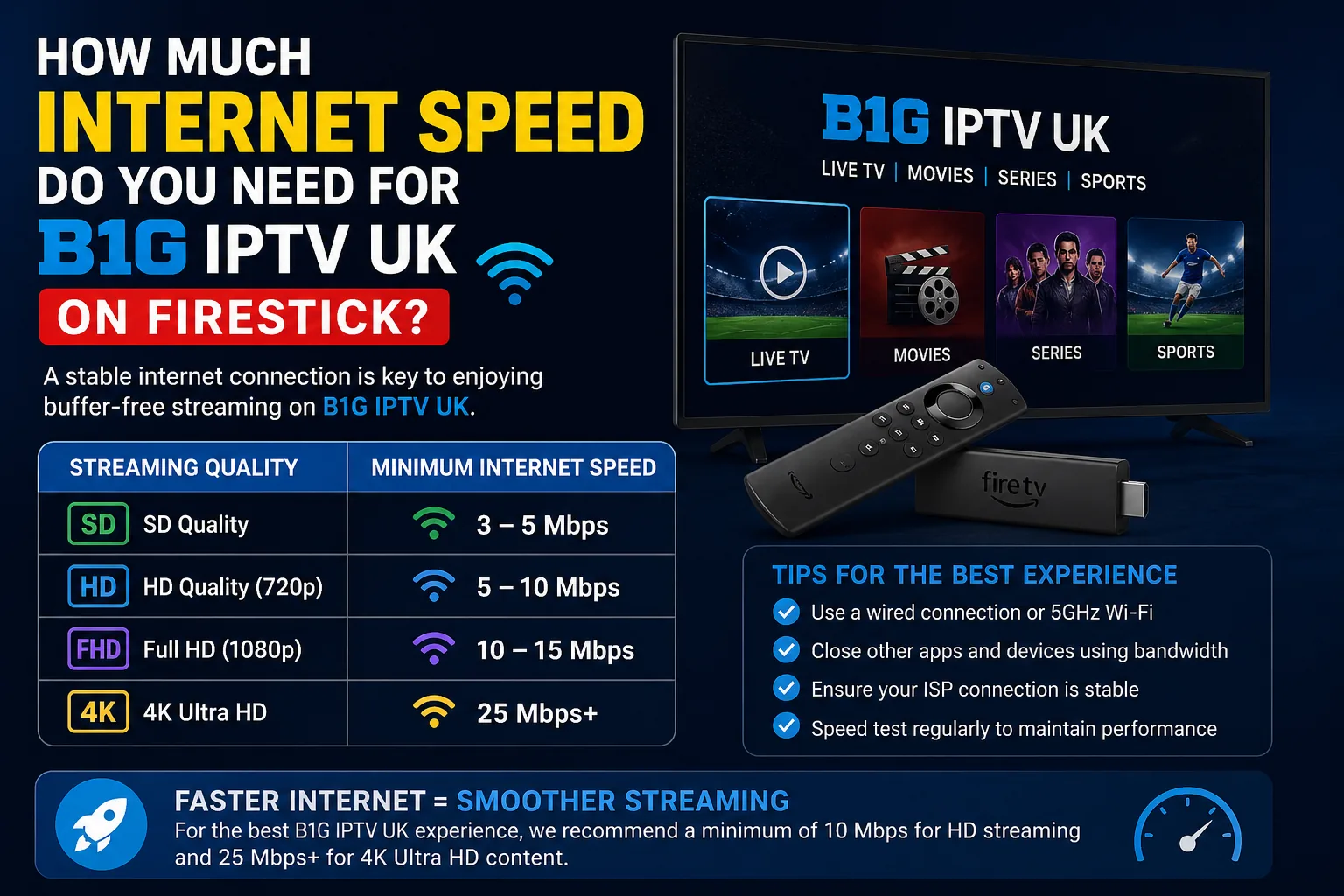
2. Check Your Internet Speed
For smooth IPTV streaming:
- SD: 5 Mbps
- HD: 10 Mbps
- 4K: 20+ Mbps
If your speed is lower, buffering is unavoidable.
3. Use a VPN (Smartly)
A VPN can:
- Prevent ISP throttling
- Improve streaming stability
But a bad VPN can slow things down.
Choose a fast, reliable one and connect to a nearby server.
4. Update Your IPTV App
Outdated apps often cause bugs.
- Go to your app store or sideload source
- Install the latest version
5. Close Background Apps
Firestick runs multiple apps in the background, which can slow performance.
Use an app cleaner or restart the device regularly.
6. Reduce Stream Quality
If your internet struggles:
- Switch from 4K → HD
- HD → SD
Lower quality = less buffering.
Best Practices to Keep Your Firestick Fast
If you want long-term smooth performance, follow these habits:
1. Regular Maintenance
Clear cache weekly.
2. Avoid Too Many Apps
Too many installed apps slow down your device.
3. Use Lightweight IPTV Players
Some apps are heavier than others. Choose optimized ones.
4. Keep Storage Free
Always keep at least 1GB of free space.
5. Restart Weekly
Simple but effective.
Common Mistakes to Avoid
Even small mistakes can ruin your streaming experience.
Clearing Data Instead of Cache
You’ll lose everything and have to set up again.
Ignoring Storage Space
Full storage = slow Firestick.
Using Slow Internet
No fix works if your connection is weak.
Overusing VPN Servers Far Away
This increases latency and buffering.
When Cache Clearing Is Not Enough
Sometimes the issue goes beyond cache.
Here’s when you need to try something else:
1. App Keeps Crashing
→ Reinstall the app
2. Channels Not Working
→ Check IPTV provider status
3. Persistent Buffering
→ Upgrade internet or switch server
4. Black Screen Issues
→ Try a different IPTV player
Should You Use a Cleaner App?
There are apps designed to clean cache automatically.
Pros:
- Saves time
- One-click cleaning
Cons:
- Some are unreliable
- May run in background and slow device
Manual cleaning is always safer and more controlled.
Quick Recap
If your B1G IPTV UK app isn’t working smoothly on Firestick:
- Go to Settings
- Open Applications
- Manage Installed Applications
- Select IPTV app
- Click Clear Cache
That alone solves most performance issues.
Final Thoughts
Clearing cache might seem like a small step, but it’s one of the most powerful ways to fix streaming problems on Firestick.
If your B1G IPTV UK app is buffering, freezing, or acting slow, don’t immediately assume it’s your internet or the service itself. In many cases, the real problem is just accumulated cache.
The best part? You can fix it in under a minute.
Make it a habit, combine it with good streaming practices, and your Firestick experience will stay smooth, fast, and frustration-free.