How to Add B1G IPTV Subscription on Firestick (2026 Guide)
If you’ve just subscribed to B1G IPTV UK and you’re staring at your Firestick wondering “what now?”, you’re not alone. Many users want to Add B1G IPTV Subscription Firestick but get stuck at this exact point—not because it’s difficult, but because no one explains it clearly.
The truth is, adding your IPTV subscription to a Firestick app is actually quite straightforward once you understand how everything connects. When you learn the process, it becomes simple to Add B1G IPTV Subscription Firestick without any confusion or technical stress.
In this guide, I’ll walk you through the entire process in a way that feels simple, practical, and easy to follow—even if this is your first time using IPTV. By the end, you’ll confidently Add B1G IPTV Subscription Firestick, with your channels loaded, your app working smoothly, and your Firestick fully set up for streaming.
What You Actually Need Before Setup
Before we jump into the steps, let’s make sure you have everything ready. Skipping this part is where most people run into trouble.
Here’s your quick checklist:
- Amazon Firestick (any recent model works fine)
- A stable internet connection (minimum 10 Mbps, ideally higher)
- Active B1G IPTV UK subscription
- Your login details (sent via email after purchase):
- Username
- Password
- Server URL OR M3U playlist link
- An IPTV player app installed on your Firestick
That last point is important.
B1G IPTV UK doesn’t work like Netflix or YouTube where you just download one official app. Instead, you use a player app to access your subscription.
Understanding How IPTV Works on Firestick
Let’s simplify this so it clicks instantly.
- IPTV Service (B1G IPTV UK) = Provides content
- IPTV App (like IPTV Smarters or TiviMate) = Plays the content
Think of it like using a media player to open a video file. The player doesn’t own the content—it just displays it.
Popular apps you can use include:
- IPTV Smarters Pro (best for beginners)
- TiviMate (best for advanced users)
- XCIPTV Player
- IBO Player
Each supports two main login methods:
- Xtream Codes (recommended)
- M3U Playlist (backup option)
Method 1: Add B1G IPTV UK Using IPTV Smarters Pro
This is the easiest and most beginner-friendly method. If you’re unsure where to start, use this.
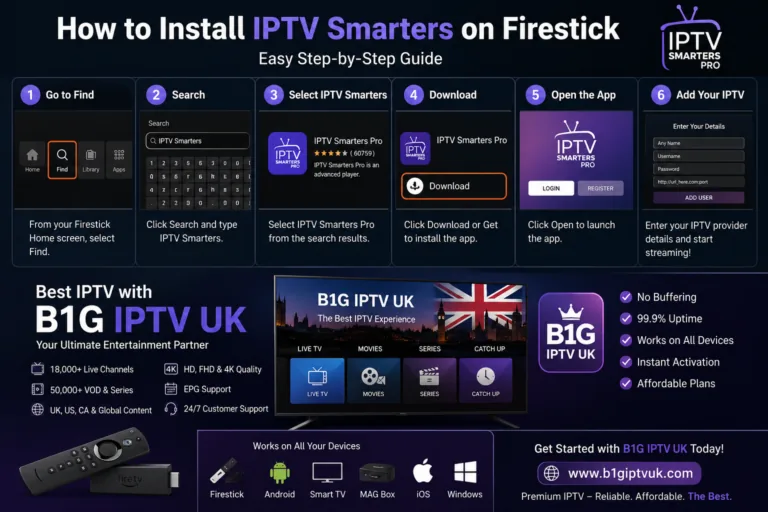
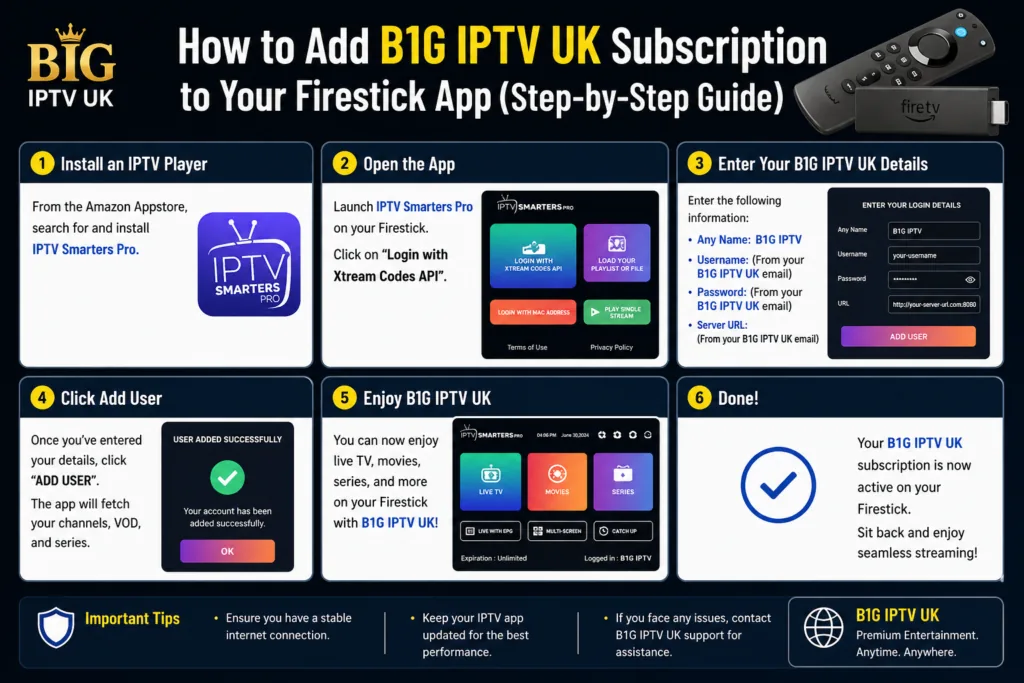
Step 1: Install IPTV Smarters Pro
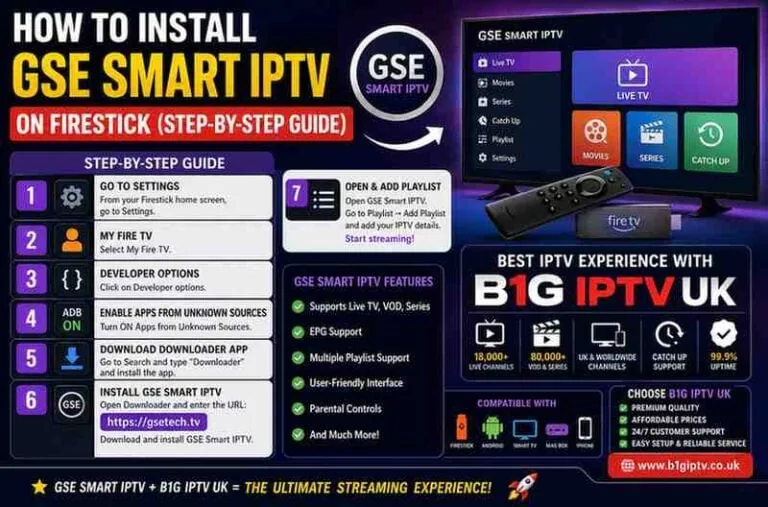
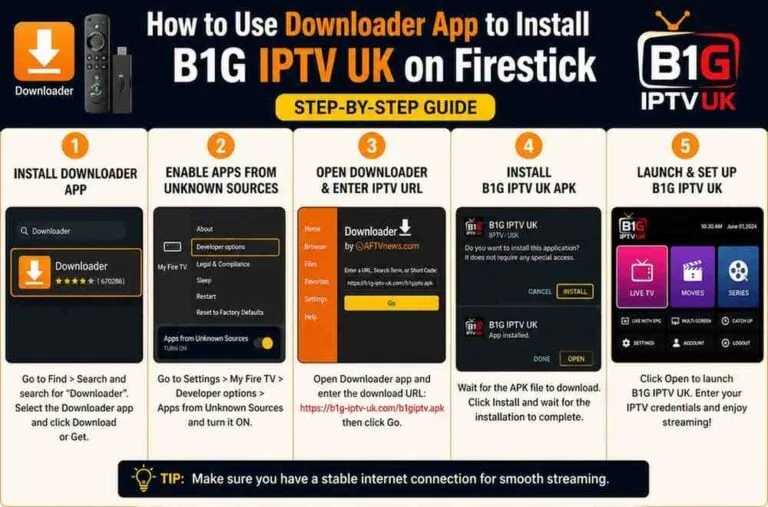
Since it’s not always available directly in the Amazon App Store, you’ll usually install it using the Downloader app.
Steps:
- Open Firestick home screen
- Go to Find → Search
- Install Downloader
- Open Downloader
- Enter the APK download URL for IPTV Smarters Pro
- Install the app
Once installed, open IPTV Smarters.
Step 2: Accept Terms
When launching for the first time:
- Accept the terms and conditions
- Click “Add User”
Step 3: Choose Login Type
You’ll see two options:
- Login with Xtream Codes API
- Load Playlist via URL
Choose Xtream Codes API (this is faster and more reliable).
Step 4: Enter Your Subscription Details
Fill in the fields:
- Any Name: e.g., B1G IPTV
- Username: Provided by your service
- Password: Provided by your service
- Server URL: Provided by B1G IPTV UK
Take a moment to double-check—most issues happen because of small typing mistakes.
Step 5: Add User and Load Content
Click “Add User” and wait a few seconds.
Your app will now load:
- Live TV channels
- Movies
- TV series
That’s it—you’re connected.
Method 2: Add B1G IPTV UK Using TiviMate
If you want a more premium feel, TiviMate is the way to go. It’s faster, cleaner, and more customizable.
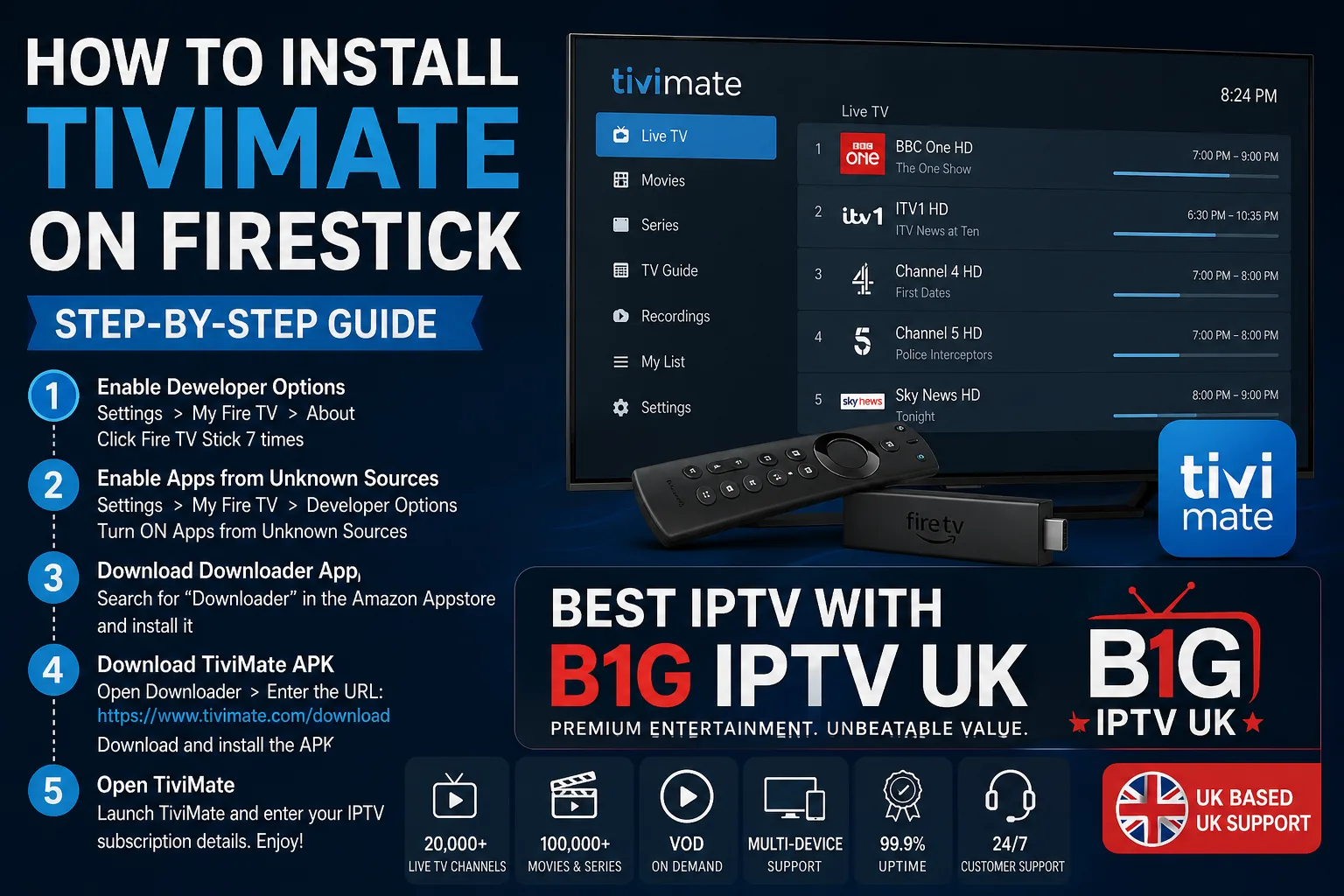
Step 1: Install TiviMate
Use Downloader again:
- Enter TiviMate APK URL
- Install the app
- Launch it
Step 2: Add Playlist
On the first screen:
- Click Add Playlist
- Select Xtream Codes Login
Step 3: Enter Login Details
Add:
- Server URL
- Username
- Password
Then click Next.
Step 4: Let It Sync
TiviMate will:
- Fetch your channels
- Organize categories
- Load TV guide (if available)
Step 5: Customize Your Setup
Here’s where TiviMate shines:
- Create favorites
- Set up EPG (TV guide)
- Adjust playback settings
- Enable multi-view (premium feature)
It feels more like a cable TV interface, which many users prefer.
Method 3: Add Subscription Using M3U Playlist
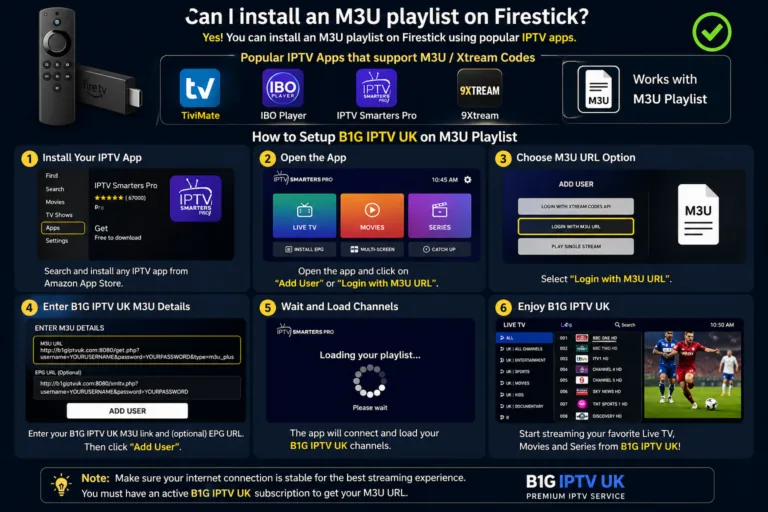
If your provider gave you an M3U link instead of Xtream Codes, no problem.
Steps
- Open your IPTV app
- Choose Add Playlist via URL
- Paste your M3U link
- Name your playlist
- Click Add
The app will process the link and load your channels.
Common Problems (And Quick Fixes)
Even with the right steps, small issues can pop up. Here’s how to handle them without frustration.
Login Not Working
Usually caused by:
- Wrong username/password
- Incorrect server URL
Fix:
- Re-enter details carefully
- Avoid extra spaces
- Copy-paste instead of typing
Buffering Issues
This is one of the most common complaints.
Fix:
- Restart your router
- Close background apps
- Use wired connection (Ethernet adapter)
- Lower video quality if needed
Channels Not Loading
Fix:
- Refresh playlist
- Restart app
- Re-add your account
App Crashing or Freezing
Fix:
- Clear cache
- Update the app
- Reinstall if needed
Best Settings for Smooth Streaming
To make your IPTV experience feel seamless:
- Use at least 20 Mbps internet for HD streaming
- Restart your Firestick every few days
- Keep apps updated
- Avoid installing too many apps
If using TiviMate:
- Turn on Hardware Decoding
- Enable Auto Frame Rate
These settings improve playback quality significantly.
Why Firestick Is Perfect for IPTV
There’s a reason so many IPTV users choose Firestick.
It’s:
- Affordable
- Easy to use
- Compatible with most IPTV apps
- Portable and lightweight
When paired with a service like B1G IPTV UK, it becomes a complete entertainment system.
You get access to:
- Live sports
- Movies
- TV shows
- International channels
All in one place.
Tips for Beginners
If this is your first time using IPTV, keep things simple:
- Start with IPTV Smarters
- Don’t rush setup—take it step by step
- Save your login details somewhere safe
- Stick to one app until you’re comfortable
Once you understand the basics, everything becomes second nature.
Is It Safe to Use IPTV on Firestick?
This depends on how you use it.
To stay on the safe side:
- Only download apps from trusted sources
- Keep your device updated
- Avoid suspicious APK files
- Use secure internet connections
Being cautious ensures a smoother and safer experience.
Final Thoughts
Adding your B1G IPTV UK subscription to a Firestick app might seem confusing at first—but once you understand the process, it’s actually very straightforward.
It all comes down to four simple steps:
- Install an IPTV player
- Enter your subscription details
- Load your channels
- Start watching
That’s it.
Within minutes, your Firestick transforms into a powerful streaming hub packed with content.
If you follow this guide carefully, you’ll avoid common mistakes and get everything working smoothly on your first try.