Install B1G IPTV UK on Firestick (Downloader Guide)
Streaming has completely changed how people watch TV, and devices like the Firestick have made it easier than ever to access content from around the world. If you’re looking for a simple B1G IPTV Firestick Downloader, the Downloader app is one of the most reliable ways to get started quickly.
This guide walks you through everything you need to know—from enabling the right settings to completing your B1G IPTV Firestick Downloader without complications. Even if you’re not tech-savvy, you’ll be able to follow along easily and set things up with confidence.
By the end of this tutorial, your B1G IPTV Firestick Downloader will be complete, and you’ll be ready to enjoy seamless streaming on your device.
What is B1G IPTV UK?
B1G IPTV UK is an IPTV service that allows users to stream live TV channels, movies, sports, and on-demand content through an internet connection instead of traditional cable or satellite.
Unlike apps available on official stores, IPTV apps often need to be sideloaded. That’s where the Downloader app comes in.
Why Use the Downloader App?
The Downloader app is a powerful tool designed specifically for Firestick and Android TV devices. It lets you download files directly from the internet using URLs.
Here’s why it’s widely used:
- Simple interface
- Direct APK downloads
- No need for a computer
- Fast installation process
Before You Start: Requirements
Before installing B1G IPTV UK, make sure you have:
- A Firestick device (any version)
- Stable internet connection
- Amazon account logged in
- Downloader app installed
- IPTV subscription (if required)
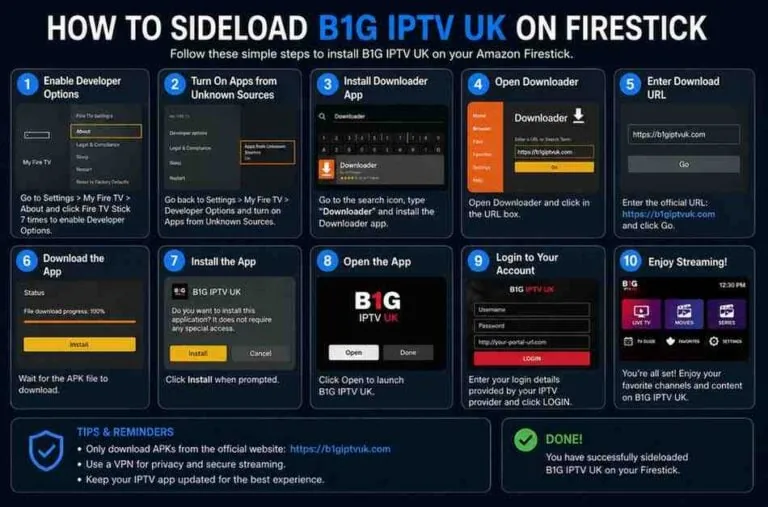
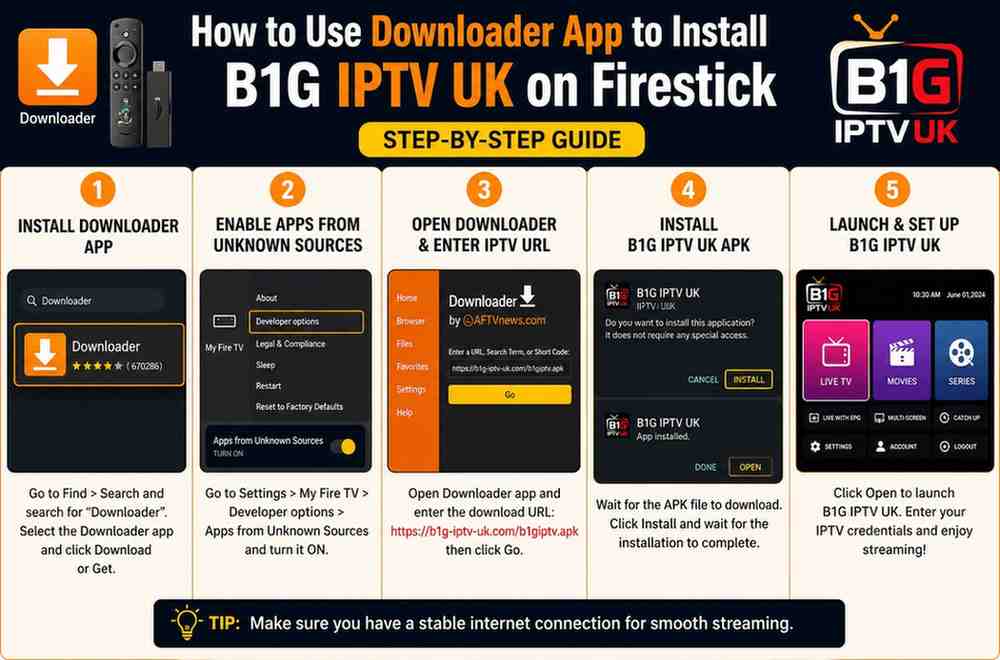
Step 1: Enable Apps from Unknown Sources
By default, Firestick blocks third-party apps for security reasons. You need to enable installations from unknown sources.
Follow these steps:
- Go to Settings on your Firestick home screen
- Select My Fire TV
- Click on Developer Options
- Turn ON:
- Apps from Unknown Sources
- ADB Debugging
If you don’t see Developer Options:
- Go to About
- Click your device name 7 times to unlock it
Step 2: Install Downloader App
If you don’t already have Downloader installed:
- Go to the Firestick home screen
- Select Find > Search
- Type “Downloader”
- Select the app and click Download
Once installed, open it.
Step 3: Allow Permissions
When you first launch Downloader:
- Click Allow for storage permissions
- Click OK on the welcome screen
This ensures the app can download and install files.
Step 4: Enter the APK URL
Now comes the main part—downloading the B1G IPTV UK app.
- Open Downloader
- In the URL field, enter the APK link provided by your IPTV service
- Click Go
The file will begin downloading automatically.
⚠️ Important: Always use a trusted and official source for the APK to avoid malware or fake apps.
Step 5: Install the App
Once the download finishes:
- The installation screen will appear
- Click Install
- Wait for the process to complete
- Click Done or Open
If you choose Done, you’ll return to Downloader.
Step 6: Delete APK File (Recommended)
To save space on your Firestick:
- Click Delete after installation
- Confirm again
This removes the APK file but keeps the installed app.
Step 7: Launch B1G IPTV UK
Now that the app is installed:
- Go to Your Apps & Channels
- Find B1G IPTV UK
- Open the app
You may need to log in using:
- Username & password
- M3U playlist URL
- Xtream Codes API
This depends on your IPTV provider.
Step 8: Start Streaming
Once logged in, you can access:
- Live TV channels
- Sports events
- Movies & TV shows
- Catch-up content
Navigation is usually simple with categories and search features.
Tips for Better Streaming Experience
To avoid buffering or playback issues, keep these tips in mind:
✔️ Use a Stable Internet Connection
At least 15–25 Mbps is recommended for HD streaming.
✔️ Restart Firestick Occasionally
Clears memory and improves performance.
✔️ Close Background Apps
Too many running apps can slow things down.
✔️ Use a VPN (Optional but Recommended)
A VPN helps protect your privacy and may improve access to geo-restricted content.
Common Issues and Fixes
1. Downloader Not Working
- Check internet connection
- Restart Firestick
- Reinstall Downloader
2. APK Not Installing
- Make sure Unknown Sources is enabled
- Check storage space
3. App Crashing
- Clear app cache
- Update the app version
- Restart device
4. Buffering Issues
- Reduce video quality
- Check internet speed
- Try a VPN
Is It Safe to Use Downloader?
Yes, the Downloader app itself is safe and widely used. However, safety depends on the source of the APK file you download.
To stay secure:
- Only use trusted URLs
- Avoid suspicious links
- Keep your device updated
Advantages of Using B1G IPTV UK on Firestick
Here’s why many users prefer IPTV services:
- Affordable compared to cable
- Access to international channels
- On-demand content
- Easy installation
- Portable and flexible
Alternatives to Downloader
While Downloader is the easiest method, there are other ways to install apps:
- ES File Explorer (less popular now)
- Apps2Fire (requires PC/phone)
- ADB installation
Still, Downloader remains the most beginner-friendly option.
Legal Disclaimer
Streaming IPTV content may depend on your region’s laws. Always ensure that you:
- Use licensed services
- Follow local regulations
- Avoid pirated content
This guide is for educational purposes only.
Final Thoughts
Installing B1G IPTV UK on Firestick using the Downloader app is a straightforward process once you know the steps. Even if you’ve never sideloaded an app before, this method makes it simple and accessible.
From enabling unknown sources to entering the APK URL and launching the app, everything can be done directly on your Firestick in just a few minutes.
Take your time, follow each step carefully, and you’ll be streaming your favorite content without any hassle.