How to Sideload B1G IPTV Firestick (Easy Guide 2026)
Streaming has changed the way people consume entertainment, and devices like the Amazon Fire TV Stick have made it easier than ever to access content from around the world. One of the most popular solutions for live TV, sports, and on-demand content is IPTV services such as B1G IPTV UK. However, since many IPTV apps are not available in the Amazon App Store, users must Sideload B1G IPTV Firestick manually.
This comprehensive guide will walk you through everything you need to know about sideloading B1G IPTV UK on Firestick, including setup, installation, troubleshooting, and best practices.
What Is B1G IPTV UK?
B1G IPTV UK is a subscription-based IPTV service that provides access to thousands of live TV channels, movies, and series. It typically includes:
- UK live TV channels
- Sports (Premier League, UFC, etc.)
- Movies and TV shows (VOD)
- HD, Full HD, and 4K streams
The service works across multiple devices, including Firestick, Android, Smart TVs, and PCs.
Unlike Netflix or Amazon Prime, IPTV services require a separate player app and login credentials, which are usually provided after purchasing a subscription.
What Does “Sideloading” Mean?
Sideloading refers to installing apps outside the official Amazon App Store. Firestick runs on a modified Android OS (Fire OS), allowing APK files (Android apps) to be installed manually.
This is necessary because:
- IPTV apps are often not listed in the App Store
- Some apps are region-restricted
- Developers distribute apps directly via APK files
Sideloading is completely legal, but what you stream depends on your IPTV provider and local laws.
Requirements Before You Start
Before installing B1G IPTV UK, make sure you have:
1. Amazon Firestick Device
Supported models include:
- Firestick Lite
- Firestick 4K / 4K Max
- Fire TV Cube
2. Stable Internet Connection
At least 20 Mbps is recommended for smooth streaming.
3. IPTV Subscription
You need:
- Username
- Password
- Server URL (sometimes)
4. Downloader App
This is required to sideload apps.
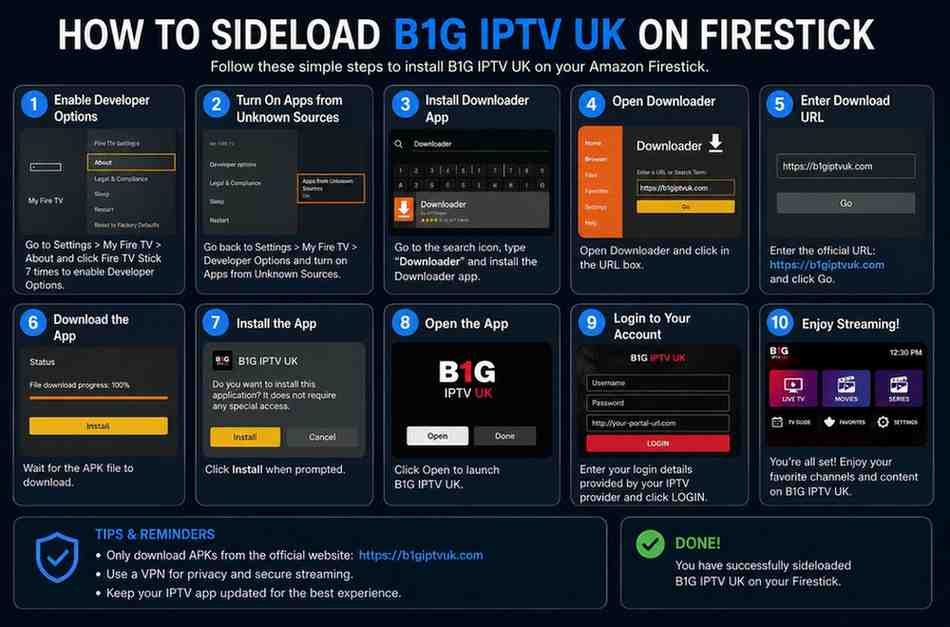
Step-by-Step Guide to Sideload B1G IPTV UK on Firestick
Step 1: Install Downloader App
The Downloader app is essential for sideloading.
Instructions:
- Turn on your Firestick
- Go to Find → Search
- Type “Downloader”
- Select the app by AFTVnews
- Click Download / Get
Once installed, open it and allow permissions.
Step 2: Enable Unknown Sources
Before sideloading, you must allow installation from unknown sources.
Steps:
- Go to Settings
- Select My Fire TV
- Click Developer Options
- Choose Install Unknown Apps
- Turn ON for Downloader
If Developer Options are missing:
- Go to About → Fire TV Stick
- Press OK 7 times to enable it
Step 3: Install B1G IPTV UK via Downloader
Now comes the actual sideloading process.
Steps:
- Open Downloader
- Click the URL box
- Enter the Downloader code or APK link
Example:
5060514
- Click Go
- Wait for download
- Click Install
- Select Done
This installs the official B1G IPTV player app.
Step 4: Log In to B1G IPTV
Once installed:
- Open the app
- Enter your login credentials
- Wait for channels to load
- Start streaming
Login details are usually provided by your IPTV reseller or provider.
Alternative Method: Using IPTV Player Apps
Some users prefer using third-party IPTV players instead of the official app.
Popular options include:
- IPTV Smarters Pro
- TiviMate
- GSE Smart IPTV
These apps require:
- M3U playlist URL
- Xtream Codes API
They offer better customization and UI in many cases.
Advantages of Using B1G IPTV on Firestick
1. Huge Content Library
Access thousands of channels and VOD content.
2. High-Quality Streaming
Supports HD, FHD, and 4K playback.
3. Multi-Device Support
Works across multiple platforms including Firestick and Android.
4. Affordable Alternative
Cheaper than traditional cable subscriptions.
Common Issues and Fixes
1. App Not Installing
Fix:
- Ensure Unknown Sources is enabled
- Restart Firestick
2. Buffering Problems
Fix:
- Use faster internet
- Restart router
- Try a VPN
3. Login Not Working
Fix:
- Double-check credentials
- Contact provider
- Update app
4. App Crashing
Fix:
- Clear cache
- Reinstall app
- Update Firestick firmware
Reddit User Insights (Real Experiences)
Many users discuss IPTV performance on Firestick.
From Reddit:
“Using B1G too… not experiencing downtime… Tivimate works better.”
Another user mentioned:
“Try different apps… official app sometimes unstable.”
Key takeaway:
- Third-party players like TiviMate often provide better stability
- Issues may depend on provider, not the app
Is Using IPTV Safe?
Legal Considerations
IPTV itself is legal, but content legality depends on the provider.
Privacy Tips
- Use a VPN
- Avoid unknown resellers
- Don’t share login details
Do You Need a VPN?
A VPN is optional but recommended.
Benefits:
- Prevent ISP throttling
- Bypass geo-restrictions
- Improve privacy
Some IPTV guides suggest VPN use for smoother streaming.
Tips for Best Streaming Experience
1. Use Ethernet Adapter
Better than Wi-Fi for stability
2. Choose a Reliable IPTV Provider
Quality varies significantly
3. Keep Apps Updated
Prevents crashes and bugs
4. Clear Cache Regularly
Improves performance
Frequently Asked Questions
Can I install B1G IPTV directly from Amazon App Store?
No, you must sideload it.
Is B1G IPTV free?
No, it requires a subscription.
Can I use it on multiple devices?
Depends on your subscription plan.
Why is my IPTV buffering?
Usually due to internet speed or server issues.
Final Thoughts
Sideloading B1G IPTV UK on Firestick is a straightforward process once you understand the steps. By installing the Downloader app, enabling unknown sources, and entering the correct code or URL, you can quickly set up your IPTV service and start streaming.
While the official B1G app works well for many users, experienced streamers often prefer third-party IPTV players for better performance and customization. Regardless of your choice, the key to a smooth experience lies in having a reliable internet connection, a quality IPTV provider, and proper setup.
As IPTV continues to grow in popularity, Firestick remains one of the best devices for streaming due to its flexibility, affordability, and compatibility with Android-based apps. By following this guide, you’ll be fully equipped to sideload and enjoy B1G IPTV UK on your Firestick without hassle.