M3U Playlist Firestick Setup for B1G IPTV UK
If you’re using an Amazon Firestick and want more control over your streaming experience, M3U playlists are one of the best solutions available. Many users choose to Install M3U Playlist Firestick to unlock flexible streaming options without being tied to a single app or provider.
Instead of being locked into one interface, when you Install M3U Playlist Firestick, you can access live TV, movies, and on-demand content through various IPTV players. This approach gives you more customization and better control over how you watch content.
So yes—you can Install M3U Playlist Firestick, and it’s easier than most people think.
What Is an M3U Playlist?
An M3U playlist is essentially a file or URL that contains streaming links for TV channels, movies, or shows. Instead of storing content itself, it acts like a directory that your IPTV player reads.
There are two main types:
- M3U URL (most common)
- M3U file (downloaded locally)
When you subscribe to a service like B1G IPTV UK, they usually provide:
- M3U URL
- Xtream Codes login (username, password, server URL)
Both formats work on Firestick.
Why Use M3U Playlist on Firestick?
Using an M3U playlist gives you more freedom compared to traditional apps.
Key Benefits:
- Works with multiple IPTV players
- Custom channel organization
- Better performance with premium apps
- Easy switching between providers
- Supports EPG (TV guide)
For users of B1G IPTV UK, M3U is especially useful if you prefer apps like TiviMate or IPTV Smarters Pro.
Best IPTV Apps for M3U on Firestick
You cannot open an M3U playlist directly—you need an IPTV player. Here are the most popular ones:
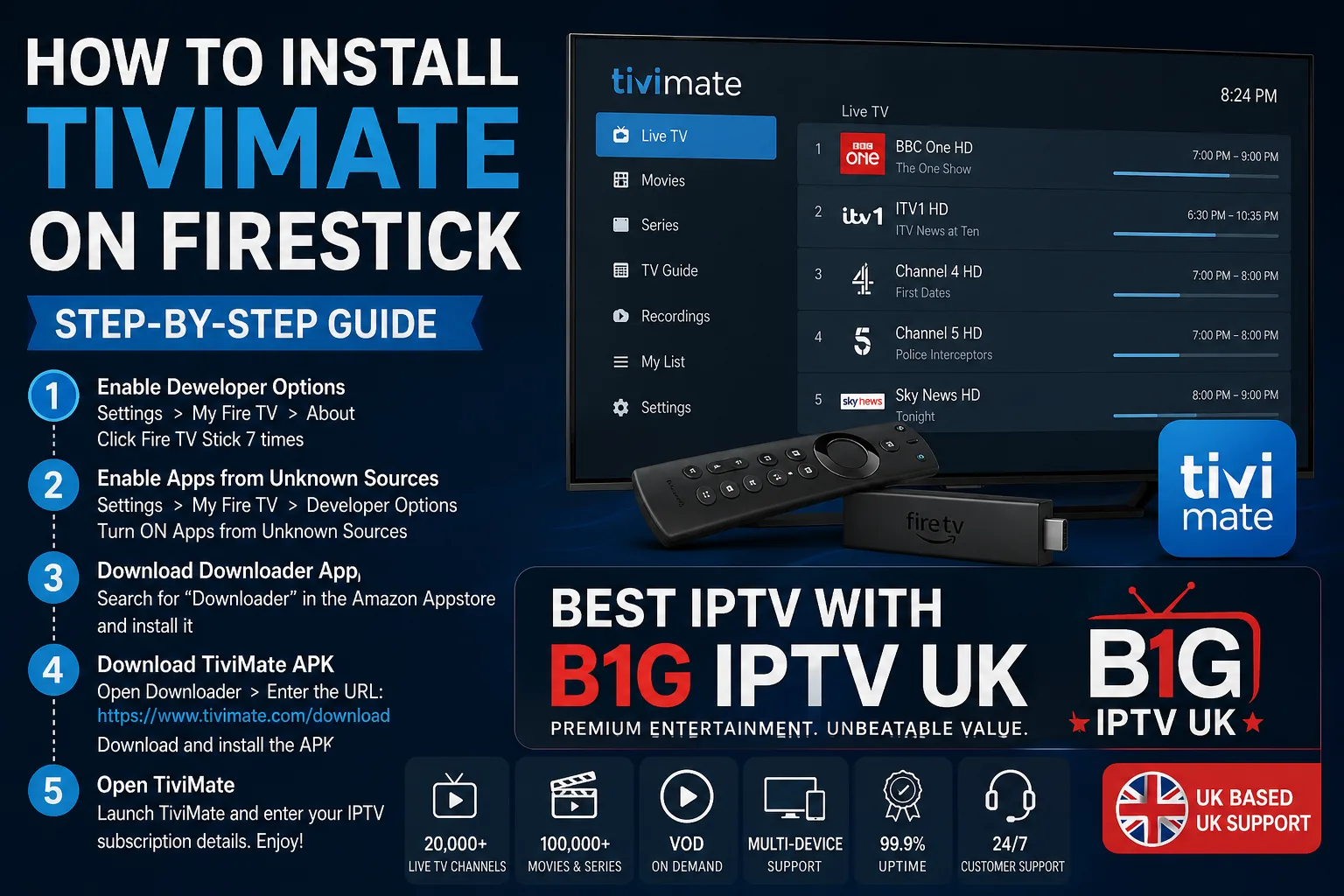
1. TiviMate IPTV Player
- Clean interface
- Advanced features (favorites, recording)
- Best for experienced users
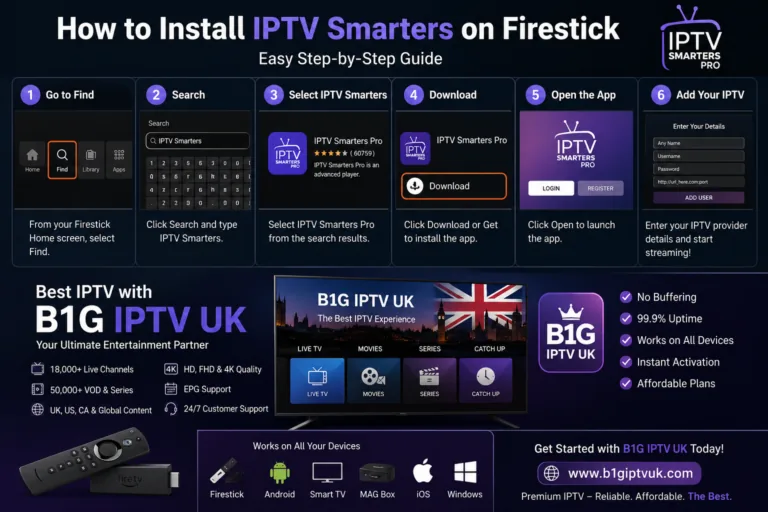
2. IPTV Smarters Pro
- Beginner-friendly
- Supports M3U & Xtream Codes
- Built-in player
3. IBO Player
- Simple setup
- Good performance
- MAC-based activation
4. 9Xtream
- Modern UI
- Supports multiple playlists
- Good for multi-device use
All of these apps support M3U playlists and work well with B1G IPTV UK.
How to Install IPTV Apps on Firestick
Before adding your M3U playlist, you need to install an IPTV player.
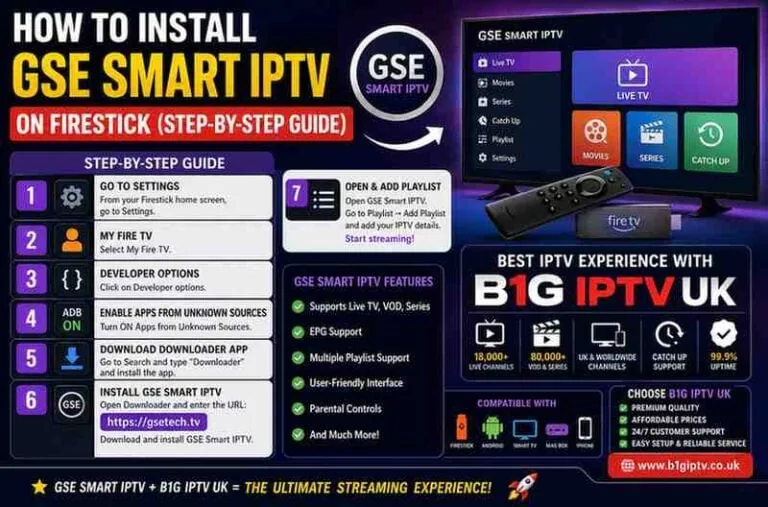
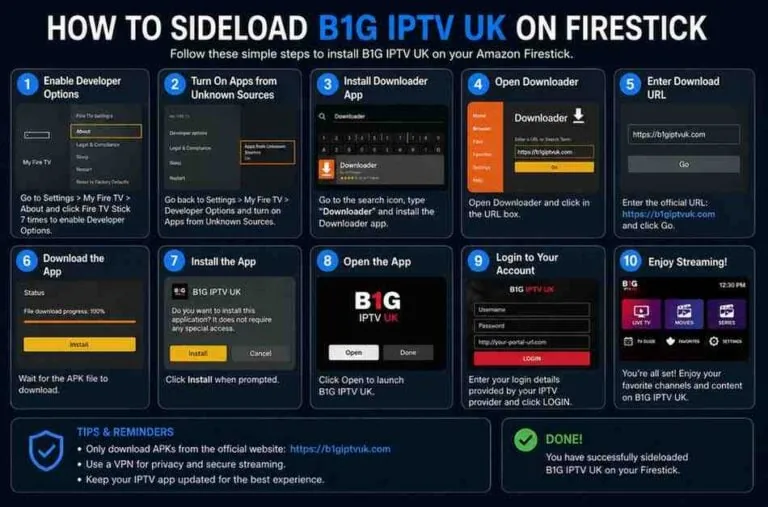
1: Enable Unknown Sources
- Go to Settings
- Select My Fire TV
- Click Developer Options
- Turn ON:
- Apps from Unknown Sources
- ADB Debugging
2: Install Downloader App
- Go to Search
- Type Downloader
- Install it
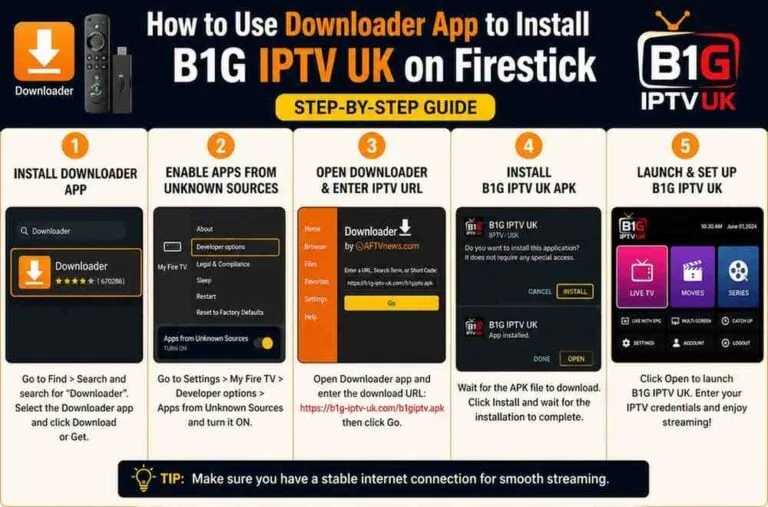
3: Install IPTV Player
Using Downloader:
- Open Downloader
- Enter the APK URL of your chosen app
- Download and install
- Open the app
Now you’re ready to add your M3U playlist.
How to Add M3U Playlist on Firestick
The process is similar across apps, but let’s break it down clearly.
1: Using TiviMate
- Open TiviMate
- Click Add Playlist
- Select Enter URL
- Paste your M3U URL
- Click Next
- Add EPG URL (optional)
- Finish setup
Your channels will load automatically.
2: IPTV Smarters Pro
- Open IPTV Smarters
- Select Load Your Playlist or File/URL
- Enter:
- Playlist name
- M3U URL
- Click Add User
- Wait for content to load
3: IBO Player
- Open IBO Player
- Note your MAC address & Device Key
- Visit IBO Player website
- Upload your M3U playlist
- Restart the app
4: 9Xtream
- Open 9Xtream
- Click Add Playlist
- Enter M3U URL
- Save and refresh
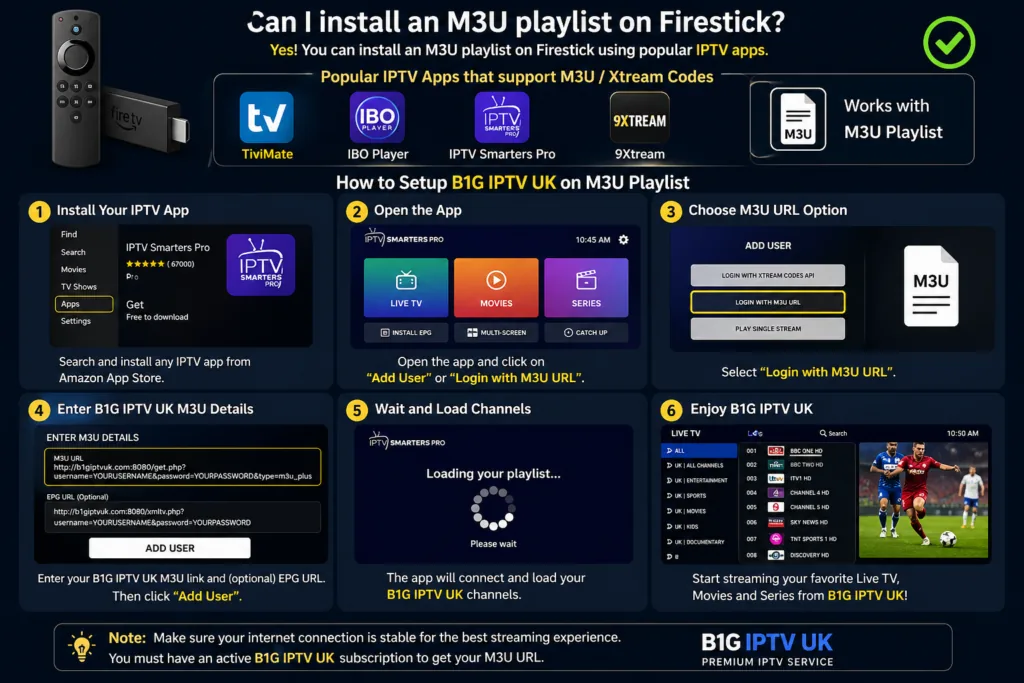
How to Setup B1G IPTV UK on M3U Playlist
Now let’s focus specifically on your main goal—setting up B1G IPTV UK.
Step-by-Step Setup (M3U Method)
1: Get Your Credentials
After subscribing to B1G IPTV UK, you’ll receive:
- M3U URL
- EPG URL
- Xtream Codes login (optional)
2: Choose Your IPTV App
Recommended:
- TiviMate (best performance)
- IPTV Smarters (easiest setup)
3: Add M3U Playlist
Example using IPTV Smarters:
- Open the app
- Click Load Playlist
- Enter:
- Name: B1G IPTV UK
- URL: (your M3U link)
- Click Add
4: Wait for Channels to Load
This may take a few seconds to a minute depending on:
- Internet speed
- Playlist size
5: Add EPG (Optional but Recommended)
EPG gives you a TV guide.
- Go to Settings
- Add EPG URL
- Refresh
Alternative Setup: Xtream Codes (Recommended)
While M3U works great, Xtream Codes is often better.
Why?
- Faster loading
- Automatic EPG
- Better organization
Setup Steps:
- Open IPTV app
- Select Login with Xtream Codes
- Enter:
- Username
- Password
- Server URL
- Login
Done.
Common Issues & Fixes
Even though setup is simple, users sometimes run into issues.
1. Playlist Not Loading
Fix:
- Check M3U URL
- Ensure subscription is active
- Restart app
2. Buffering Issues
Fix:
- Use stable internet (10+ Mbps)
- Try different player (TiviMate works best)
- Use VPN if ISP throttling
3. EPG Not Showing
Fix:
- Re-add EPG URL
- Refresh guide
- Wait a few minutes
4. App Crashing
Fix:
- Clear cache
- Reinstall app
- Use lighter player
Best Settings for Smooth Streaming
To get the most out of your M3U playlist:
Recommended Settings:
- Use external player (like VLC or MX Player)
- Enable hardware decoding
- Adjust buffer size
- Use wired connection (if possible)
Is M3U Better Than APK Apps?
It depends on your preference.
M3U Playlist Pros:
- Flexible
- Works on multiple apps
- Customizable
APK Apps Pros:
- Easy setup
- No configuration needed
For B1G IPTV UK, M3U is ideal if you want control, while APK is better for beginners.
Safety & Legal Considerations
When using IPTV services:
- Always use trusted providers
- Avoid free, unreliable playlists
- Consider using a VPN for privacy
Final Thoughts
Installing and using an M3U playlist on Firestick is not only possible—it’s one of the best ways to unlock a powerful, customizable streaming experience.
With apps like TiviMate, IPTV Smarters Pro, IBO Player, and 9Xtream, you can easily load your playlist and enjoy seamless viewing.
Setting up B1G IPTV UK using an M3U playlist is straightforward:
- Install an IPTV player
- Add your M3U URL
- Load channels
- Enjoy streaming
If you want better performance, consider using Xtream Codes instead—but M3U remains a reliable and flexible option.