How to Install B1G IPTV on Firestick (2026 Guide)
Streaming has completely reshaped the way we watch TV, and devices like the Amazon Fire TV Stick make it simple to access global content from the comfort of your home. If you’ve subscribed to B1G IPTV UK and are wondering how to get everything running smoothly on your Firestick, this B1G IPTV Firestick Installation Guide will walk you through every step.
This B1G IPTV Firestick Installation Guide is designed for beginners and everyday users alike. You don’t need any technical experience—just follow along step by step. Instead of a short checklist, this is a complete walkthrough that explains each part of the process clearly, along with useful tips and troubleshooting advice to help you avoid common issues.
What You Need Before Starting
Make sure you have the following ready:
- A working Firestick connected to your TV
- A stable internet connection (preferably 20 Mbps or higher)
- Your B1G IPTV login details (username and password)
- A bit of patience—first-time setup takes around 10–15 minutes
Step 1: Install the Downloader App
This is the tool that makes everything possible.
How to do it:
- Turn on your Firestick and go to the Home screen
- Navigate to Find → Search
- Type Downloader
- Select the app from the results
- Click Download or Get
Once installed, open it and allow any permissions it asks for. These permissions are necessary for downloading files.
Step 2: Enable Apps from Unknown Sources
By default, Firestick blocks apps that aren’t from the official store. You need to change that setting.
Follow these steps:
- Go to Settings
- Select My Fire TV
- Open Developer Options
- Turn ON:
- ADB Debugging (optional but helpful)
- Install Unknown Apps
- Choose Downloader and enable it
If you don’t see Developer Options:
- Go to My Fire TV → About
- Click your Firestick name 7 times
- You’ll see a message saying developer mode is enabled
Step 3: Download the B1G IPTV App
Now comes the actual installation.
- Open the Downloader app
- In the URL box, enter the code or link provided by your IPTV provider
Many users receive a short numeric code (for example: 5060514), but this can change depending on the provider.
- Click Go
- Wait for the file to download
- When prompted, click Install
- After installation, click Done
You can delete the downloaded file afterward to save space.
Step 4: Open the App and Log In
Now that the app is installed:
- Go back to your Firestick home screen
- Navigate to Your Apps & Channels
- Open the B1G IPTV app
Enter the login details you received:
- Username
- Password
Once you log in, the app will start loading channels, movies, and TV shows. This might take a minute the first time.
Step 5: Start Watching
After everything loads, you’ll see categories like:
- Live TV
- Movies
- Series
- Sports
Use your remote to browse and select what you want to watch. That’s it—you’re set up.
Alternative Method (Recommended for Stability)
Many experienced users don’t rely on the provider’s app. Instead, they use dedicated IPTV players like:
- TiviMate
- IPTV Smarters Pro
Why use these?
- Better interface
- More stable playback
- Advanced features like favorites and EPG
How it works:
Instead of installing the B1G app, you install one of these players and log in using:
- Server URL
- Username
- Password
This method is often smoother, especially during peak hours.
Common Problems and Fixes
Even if you follow everything correctly, you might run into issues. Here are the most common ones.
1. App Not Installing
Possible reasons:
- Unknown sources not enabled
- Incorrect download code
Fix:
- Double-check Step 2
- Confirm the code with your provider
2. Login Not Working
Possible reasons:
- Wrong credentials
- Subscription expired
Fix:
- Re-enter details carefully
- Contact your provider
3. Buffering or Freezing
This is one of the most common complaints.
Possible causes:
- Slow internet
- Server overload
- ISP throttling
Fixes:
- Restart your router
- Close background apps
- Try using a VPN
4. Channels Not Loading
Fix:
- Restart the app
- Clear app cache:
- Settings → Applications → Manage Installed Apps → Select app → Clear Cache
Tips for Better Performance
To get the best experience, follow these simple tips:
Keep Your Firestick Clean
- Remove apps you don’t use
- Clear cache regularly
Use Wired Internet (if possible)
Wi-Fi works fine, but a wired connection is more stable.
Restart Occasionally
A quick restart can fix many small issues.
Is a VPN Necessary?
A VPN isn’t required, but many users choose to use one for:
- Privacy
- Avoiding ISP throttling
- Accessing region-locked content
If your streams buffer often, a VPN can sometimes help.
Safety and Responsibility
It’s important to be aware that IPTV services vary in how they operate. Always:
- Use trusted providers
- Avoid sharing login details
- Be cautious with unknown download links
You’re responsible for how you use the service.
Final Thoughts
Installing B1G IPTV UK on a Firestick might seem complicated at first, but once you understand the process, it becomes straightforward.
Here’s a quick recap:
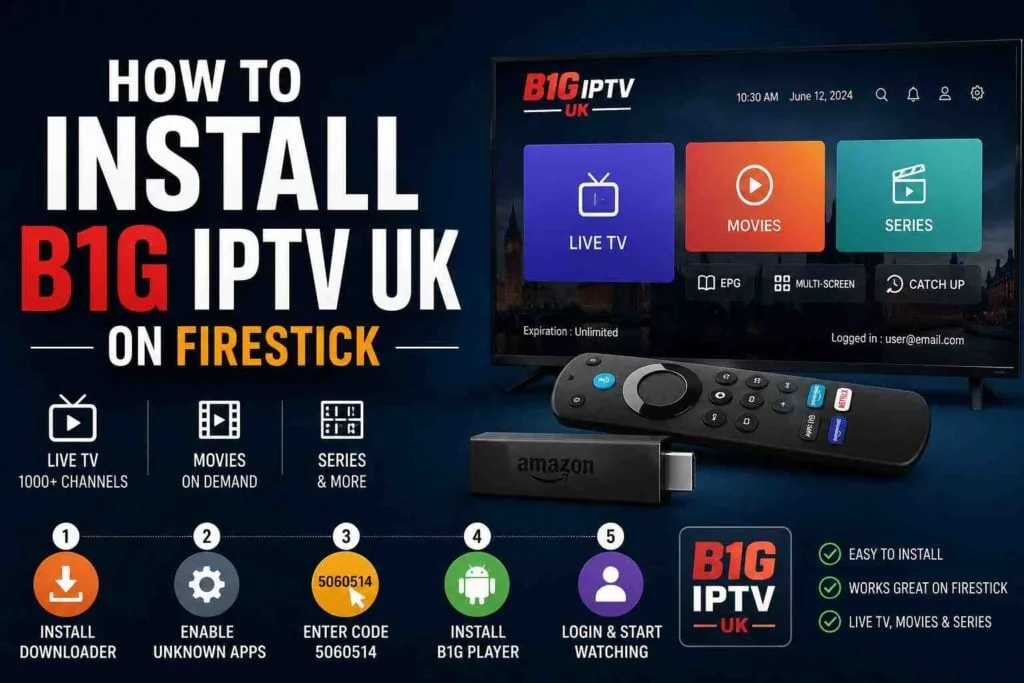
- Install Downloader
- Enable unknown apps
- Download the IPTV app
- Log in with your details
- Start watching
If you want a smoother experience, consider using apps like TiviMate instead of the default one.
Setting this up properly means you’ll have access to a wide range of content right from your TV, without needing cables or complicated hardware.